

Why your WiFi extender is secretly a comedian (and why that’s okay)
Ever feel like your WiFi extender is playing a silly prank on you?

One minute it’s working perfectly, the next it’s decided to take a coffee break, leaving you with no internet in that one tricky spot. It’s like having a stand-up comedian in your living room, but instead of telling jokes, it’s just making your streaming buffer at the best part of the show!
You bought a wifi extender signal booster to get rid of those annoying dead zones in your home. Maybe you picked up a popular nighthawk wifi extender or an orbi wifi extender, hoping for smooth surfing everywhere. But sometimes, even with these devices, you still hit a wall of silence when you’re trying to watch a funny video or connect for work. That’s because a wifi extender signal booster works by grabbing your existing Wi-Fi signal and sending it further, creating a new wifi access point. When it doesn’t quite work, it can be frustrating.
It’s common to feel confused about things like linksys extender setup or where to place your device for the best signal. The good news? You’re not alone, and these little tech comedians aren’t trying to trick you on purpose. Sometimes they just need a bit of understanding and a gentle nudge in the right direction.
In this guide, we’ll dive into simple ways to make your WiFi extender work better. We’ll offer easy tips for placement, share straightforward troubleshooting steps, and even bring a little humor into the mix. Our goal is to make fixing your flaky Wi-Fi feel less like a chore and more like a fun challenge you can definitely win. After all, a little laughter can go a long way, even when dealing with tech. You might even find some useful advice to fix WiFi dead zones with these 10 tips for a stronger signal.
Ready to turn your extender’s comedy routine into a perfectly clear signal? Then let’s get started. If you need a quick mood boost, why not Laugh First Today?
Sometimes, your WiFi extender doesn’t mean to be dramatic, but it can act like one.
It’s not trying to make your internet slow. Instead, there are often simple reasons why a wifi extender signal booster might be causing you trouble. Let’s look at why your internet might feel like it’s going at a snail’s pace even with a booster.
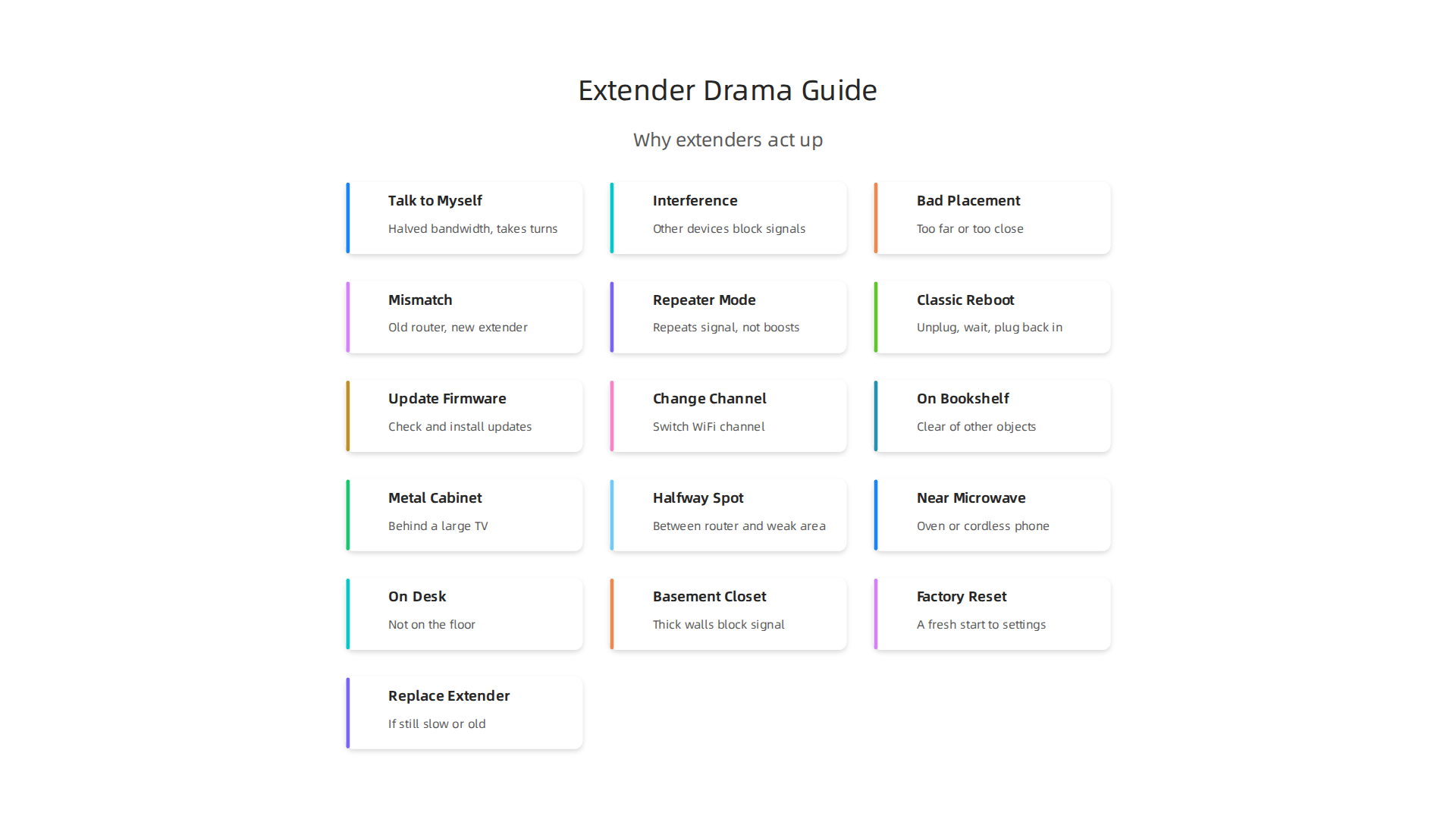
The "Talk to Myself" Problem
Imagine your WiFi extender is like a helpful messenger in a big, noisy room. Your main router whispers a message (the WiFi signal). The extender hears it, then shouts it louder so others can hear. But here’s the catch: the extender often uses the same voice to listen and shout. This means it can’t listen and talk at the same time very well. It has to take turns.
This "taking turns" is a common reason why your internet speed can seem slower through an extender. It’s called "halved bandwidth" because the extender is busy listening to the router and then re-sending the signal. This can cut your internet speed almost in half in that extended area. Think of it as a telephone game where the message gets passed along, but each pass takes a little time, slowing down the whole process. This is how a Wi-Fi signal booster or extender works to cover more space.
Interference: The Nosy Neighbors
Another reason for drama? Interference. Your WiFi signals are like invisible radio waves, and they’re everywhere in your home. Other devices, like microwaves, cordless phones, and even your neighbor’s WiFi, can get in the way. When your wifi extender signal booster tries to catch and send signals, these other devices can be like noisy neighbors, making it hard for your extender to hear or be heard clearly.
Bad Placement: The Extender in the Wrong Spot
Where you put your extender matters a lot. If you place your nighthawk wifi extender or orbi wifi extender too far from your main router, it’s like asking someone to hear a whisper from across a football field. It won’t get a strong signal to begin with, so what it sends out won’t be much better. It needs to be close enough to your router to grab a good signal, but also close enough to the dead zone to send that signal where you need it. This can be a tricky balance to find, but it’s key for a good wifi access point.
Similarly, if you put it too close to your router, it might not be helping at all because the router’s signal is already strong there. It’s like having two people shouting right next to each other; it just creates more noise.
Mismatch: Not All Friends Play Well Together
Sometimes, your router and extender just don’t get along perfectly. If your router is very old and your extender is very new, or vice-versa, they might not "speak" the same WiFi language as smoothly. While most devices try to work together, a big difference can lead to less-than-ideal performance. It’s not usually a huge problem, but it can add to the drama. Learning the basics of The Beginner’s Guide to Set Up a WiFi Extender at Home can help.
Your Mental Model: Extenders Are Repeaters, Not Super-Chargers
The best way to think about a wifi extender signal booster is that it’s a "repeater." It repeats the signal it receives. It doesn’t magically make your internet faster, nor does it create a brand new, super-strong internet line. It just helps your existing WiFi signal reach further. If the signal it gets from your router is weak, the signal it repeats will also be weak.
Understanding these simple ideas can help you troubleshoot and get the most out of your linksys extender setup or any other brand you use. For more tips on making your eero extender work better, you can explore how to Make Your Eero Extender Work Better Simple Fixes for Stronger Wifi. Knowing these common "drama queen" moments helps you guide your extender to be a star performer instead.
Now that you know some reasons why your WiFi can act up, let’s look at easy ways to get your internet running smoothly again.
These simple tricks often work like magic and you don’t need to be a tech wizard to try them. Think of them as funny fixes that make your wifi extender signal booster happy again.
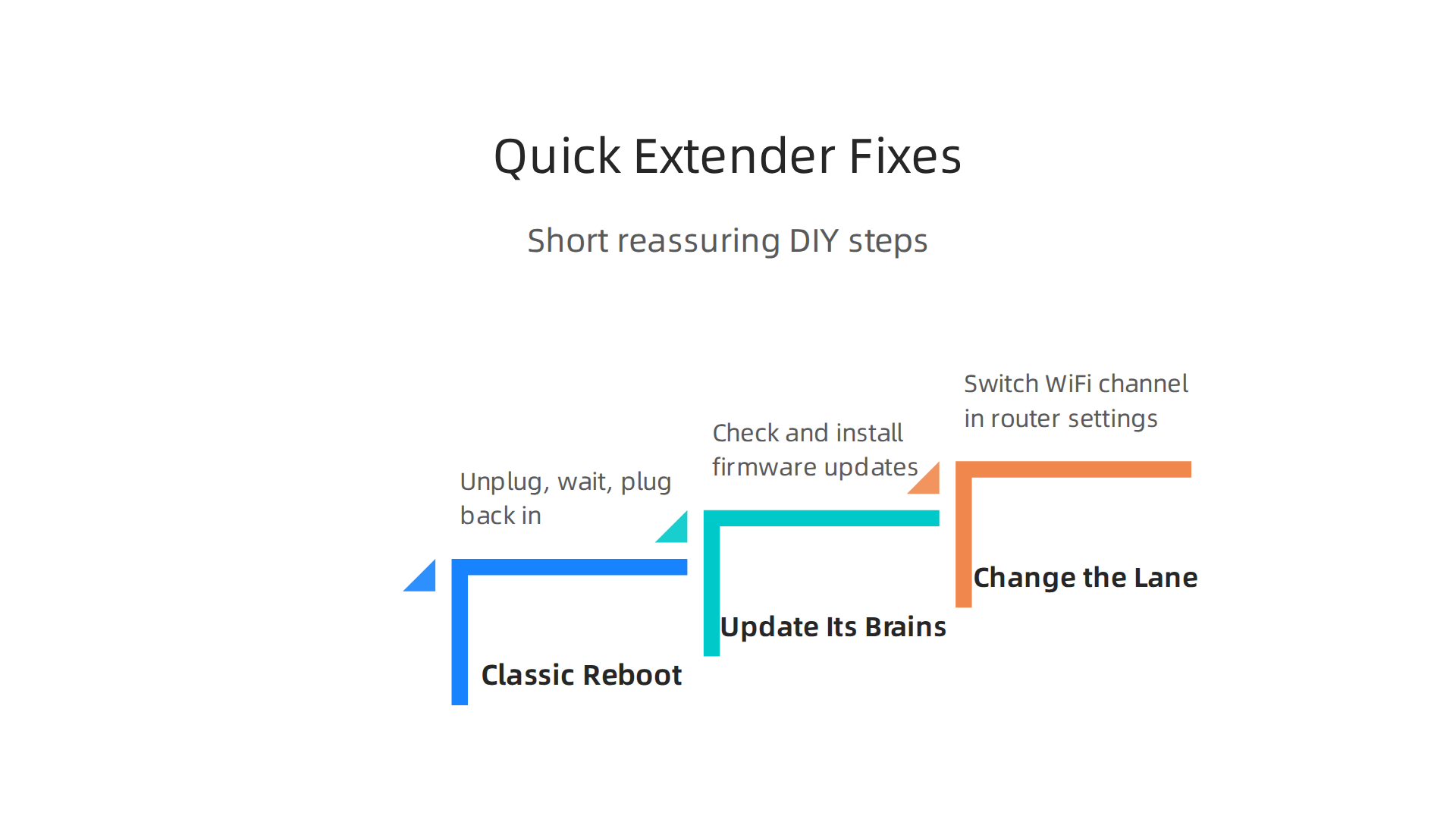
1. The Classic Reboot: "Have You Tried Turning It Off and On Again?"
This might sound like a joke, but it’s a real hero! Imagine your nighthawk wifi extender or orbi wifi extender is like a person trying to juggle too many things. Sometimes, it just needs a quick break to clear its head.
How to do it:
- Unplug your WiFi extender from the wall.
- Wait about 10-20 seconds.
- Plug it back in.
This simple step can fix many small glitches. It clears out temporary errors and gives your extender a fresh start. It’s like taking a deep breath and starting over. This works great if your internet suddenly slows down for no clear reason.
2. Update Its Brains: Firmware Check
Just like your phone or computer, your linksys extender setup has software inside that tells it what to do. This is called "firmware." Sometimes, older firmware can cause problems or miss out on new ways to work better.
How to do it:
- You’ll need to go to the website of your extender’s brand (like Netgear, TP-Link, Linksys, etc.).
- Look for a "Support" or "Downloads" section.
- Find your specific extender model.
- Download the latest "firmware" update and follow the steps to install it.
Updating the firmware is like giving your extender new, smarter instructions. It can help it work more efficiently and sometimes even boost its performance. Think of it as best management practices for your device, keeping it up to date for better function, much like regular updates can improve how other systems operate in 2026, as noted in documents describing the importance of adhering to CHAPTER 30 – Wisconsin Legislative Documents.
3. Change the Lane: WiFi Channel Switch
Remember how other devices can interfere with your WiFi? Your WiFi signals travel on different "channels," like lanes on a highway. If too many devices are on the same lane, things get crowded and slow.
How to do it:
- You’ll need to log into your main router’s settings. You can usually find instructions by searching online for your router’s brand and "how to log in."
- Look for "Wireless Settings" or "WiFi Settings."
- Find an option for "Channel" or "Wireless Channel."
- Try changing the channel from "Auto" to a less crowded one, like 1, 6, or 11 for 2.4GHz WiFi, or specific channels for 5GHz WiFi.
Switching channels can help your wifi access point avoid the "noisy neighbors" we talked about earlier. It gives your signal a clearer path, which can make your internet faster and more stable, especially if you live in an apartment or busy area.
When a Quick Fix Isn’t Enough
These simple steps often solve common WiFi extender problems. But sometimes, the issue might be bigger. If you’ve tried these fixes and your internet is still really slow, or your wifi extender signal booster keeps disconnecting, it might be time to look into other solutions. Maybe your extender is too old, or your home needs a different kind of WiFi setup entirely.
For more in-depth solutions to common connectivity issues, you can learn how to Fix Wifi Dead Zones With These 10 Tips For A Stronger Signal.
If your quick fixes did not work, it might be about where your wifi extender signal booster is sitting. Think of placing your WiFi extender like finding the best spot for a little helper that makes your internet faster.

You want to give it the clearest path to share its signal, almost like good "feng shui" for your home’s internet.
3) Placement and the feng shui of extenders (aka where to hide it so it helps)
Finding the right spot for your wifi extender signal booster is super important. It’s not just about hiding it away. It’s about putting it where it can do the most good. We want to find its "sweet spot."
1. The "Just Right" Distance and Height
Your extender needs to be close enough to your main router to get a good signal itself, but far enough to share that stronger signal with the parts of your home that need it.
- Not too close to the main router: If it’s right next to your router, it’s like two people shouting in the same room. It won’t help much.
- Not too far from the main router: If it’s too far, it will only get a weak signal to start with, so it won’t have much to boost. Imagine trying to hear a whisper from across a noisy street.
A good rule of thumb is to place your orbi wifi extender or nighthawk wifi extender about halfway between your main router and the "dead zone" where your WiFi is bad. Also, try to place it a bit higher up, like on a shelf or a desk. Signals like to travel down, so being a little high helps them spread out better. Even in big cities, where they set up small wireless signal helpers, placement is key for good coverage, just like how Salt Lake City Small Cell Infrastructure is planned.
2. Watch Out for Signal Blockers
Some things in your home can act like signal monsters, eating up your WiFi. Walls, especially thick ones or those with metal inside, can be big blockers. But other common household items can also get in the way.
- Metal: Things like filing cabinets, refrigerators, or even mirrors (which often have a thin metal backing) can bounce or block signals.
- Water: Large fish tanks or big jugs of water can also mess with your WiFi.
- Electronics: Microwaves, cordless phones, and even some baby monitors can cause interference.
Try to keep your linksys extender setup away from these things. Sometimes, just moving it a few feet can make a big difference. You can do a simple "swap test" by moving it and checking your WiFi speed in the problem area.
Here’s a quick peek at good and bad spots:
| Good Spots for Your Extender | Bad Spots for Your Extender |
|---|---|
| On a bookshelf, clear of other objects | Inside a metal cabinet or behind a large TV |
| About halfway between your router and the weak spot | Near a microwave oven or cordless phone |
| In an open hallway or living room | In a basement or closet with thick walls |
| On a desk or table, not on the floor | Behind a large appliance like a refrigerator |
By paying attention to where you put your wifi access point or wifi extender signal booster, you can often get a much stronger and faster internet connection. If you’re using an Eero extender, you can find more tips on how to make your eero extender work better simple fixes for stronger wifi. Sometimes, just moving your extender can be like giving it a superpower! For those who travel or need on-the-go fixes, learning about a portable wifi extender that fixes buffering and saves every punchline could also be helpful.
Want More Good Humor? Meet a book series made for readers who like funny and thoughtful. Want More Good Humor?
Even after finding the best spot for your wifi extender signal booster, sometimes the internet still acts up. Don’t worry, it’s not always broken. Sometimes, it just needs a little push or a fresh start. Let’s look at a simple way to decide if your extender needs a quick fix, a deeper reset, or if it’s time for a new one.
4) Reboot, reset, or replace? A (very unofficial) decision flow
Think of this like a doctor’s visit for your WiFi. We start with the easiest fixes and move to bigger steps if needed.
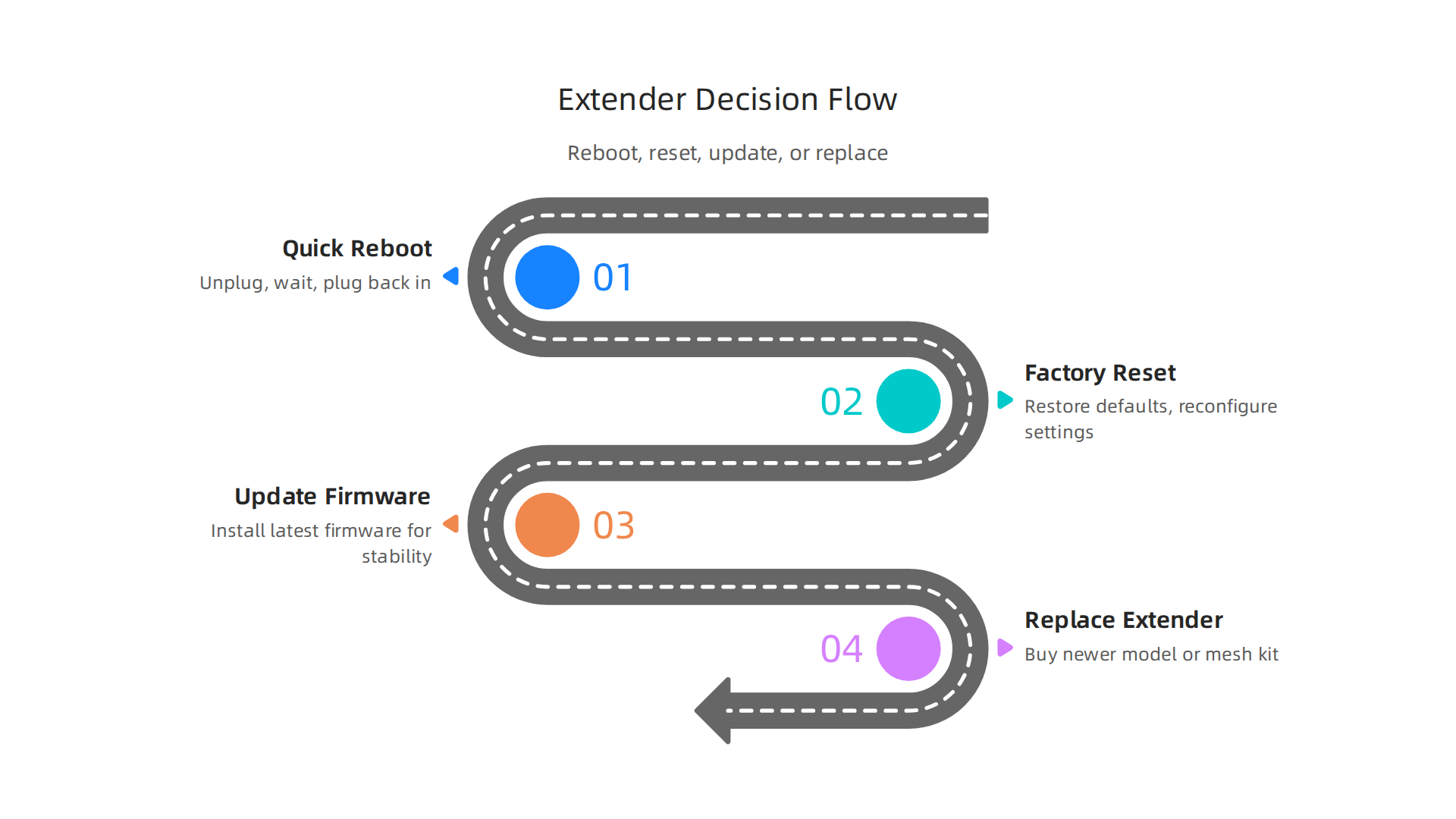
Step 1: The Quick Reboot (Like a Nap for Your Extender)
Before you do anything else, try a simple reboot. This is the easiest step and often fixes many small problems. It’s like turning your computer off and on again.
- Unplug it: Take your
wifi extender signal boosterout of the wall socket. - Wait: Give it about 30 seconds.
- Plug it back in: Put it back in the same socket.
This allows the extender to clear its head and reconnect to your main router. Many people find that simply unplugging the extender for a bit helps if the internet stops working after a while, or if you need to fix a WiFi extender not connecting to the internet.
Step 2: The Factory Reset (A Fresh Start)
If a quick reboot doesn’t help, a factory reset might be needed. This makes your orbi wifi extender or nighthawk wifi extender forget all its old settings and go back to how it was when you first bought it. You’ll need to set it up again from scratch, just like the first time.
When to do this:
- If your extender isn’t connecting at all.
- If you changed your main router’s password or settings and the extender won’t catch up.
- If your extender is acting really strange, like dropping connections all the time.
Most extenders have a small reset button, often a tiny hole you need to push with a paperclip for about 10 seconds. For example, to reset your Wi-Fi Extender to factory default settings, you’d follow these steps. You can often find specific guides for your model, like how to reset your TP-Link WiFi Range Extender on YouTube.
Step 3: Update the Firmware (Getting Smarter)
"Firmware" is like the operating system for your linksys extender setup. Companies sometimes release updates to fix bugs, make things faster, or add new features. If your extender is having problems, checking for a firmware update can sometimes magically fix things.
You usually do this through the extender’s settings page, which you access through a web browser. Keeping your firmware up to date is important for all your wireless devices, including your wifi access point and even your main router, as it helps get the latest fixes and improvements. Many manufacturers, like ASUS, recommend that you update your firmware regularly for optimal performance.
Step 4: When to Replace Your WiFi Extender Signal Booster
Sometimes, after all these tries, your wifi extender signal booster might just be old, broken, or not strong enough for your home anymore. Here are some signs it might be time for a new one:
- Still slow: Even after reboots, resets, and updates, your internet speeds are still bad in the dead zones.
- Drops connection often: Your devices keep losing connection to the extender.
- Old model: If your extender is many years old, it might not work well with newer, faster internet plans or devices. Newer WiFi technology, like WiFi 6 or 7, can offer much better speed and coverage.
- Constant setup issues: You have to set it up again and again.
Consider if your needs have changed. Did you get faster internet? Do you have more devices? A new wifi extender signal booster might be a good investment. Before buying, it is smart to know if a WiFi extender will work for you. If you’re still struggling with patchy internet, you might find more helpful advice by reading about how to fix WiFi dead zones with these 10 tips for a stronger signal.
If you’ve tried rebooting, resetting, and updating your wifi extender signal booster and things still feel a bit off, don’t throw it out just yet. Sometimes, a little bit of playing around with settings and testing can make a big difference. Think of it like being a detective for your home internet. You’re looking for clues!
5) Gadgets, settings, and silly trial-and-error (fun experiments you can try)
Let’s explore some easy experiments you can do. These don’t cost anything and might help you find the sweet spot for your home Wi-Fi.
Test One Device at a Time
Sometimes the problem isn’t the extender, but how many devices are trying to use it.
- Pick one device: Grab your phone, tablet, or laptop.
- Go to a "dead zone": Walk to the part of your home where Wi-Fi usually struggles.
- Connect to the extender: Make sure your device is connected to the
wifi extender signal boosternetwork, not directly to your main router. - Do a speed test: Use a free online speed checker. Just type "internet speed test" into a search engine. Write down the numbers you see for download and upload speeds.
- Move closer: Now, move much closer to your extender and do the speed test again. Did the speed get better? This can tell you if the extender itself is working but perhaps not reaching far enough.
If your internet suddenly stops working after a while, especially with many devices, it could be a sign your extender is struggling to handle the load. Sometimes, unplugging it for a bit can help, as some users on forums have noted issues where their TP Link WiFi extender makes their internet not work after a while.
Play with Extender Settings (The Easy Ones)
Your wifi extender signal booster has a settings page, usually found by typing a special address into your web browser. You might have visited this page during your linksys extender setup or orbi wifi extender installation. Here are two simple things to look at:
- Wi-Fi Channels: Think of Wi-Fi channels like different lanes on a highway. If everyone in your neighborhood is on the same lane (channel), traffic gets slow. You can sometimes change the Wi-Fi channel on your extender or even your main
wifi access point. Look for a setting like "Wireless Channel" and try a different number, like 1, 6, or 11 for the 2.4 GHz band, or different ones for the 5 GHz band. This might clear up crowding. - 2.4 GHz vs. 5 GHz: Your extender might offer two types of Wi-Fi bands.
- 2.4 GHz: This is like a long, slower road trip. It reaches farther and goes through walls better, but it’s often slower and more crowded.
- 5 GHz: This is like a fast sprint. It’s quicker, but it doesn’t go as far or through walls as well.
Try connecting your device to the 5 GHz network if you’re close to the extender for faster speeds, or the 2.4 GHz if you need more range. Mostnighthawk wifi extendermodels allow you to pick which band your devices connect to. For more ways to improve your Wi-Fi, consider checking out how to make your eero extender work better with simple fixes for stronger wifi.
Keep a Simple Log
When you’re trying different things, it’s easy to forget what worked and what didn’t. Keep a simple note of your experiments:
- Date and Time: When did you make a change?
- What you did: "Changed 2.4 GHz channel to 6." or "Moved extender to hallway."
- Results: "Speed test went from 10 Mbps to 25 Mbps!" or "Still slow."
This way, your trial-and-error feels more like a science project and less like just poking around in the dark.
Trying these small experiments can give you a better idea of what’s happening with your Wi-Fi. It might even help you avoid having to buy a new one or show you exactly what kind of new Wi-Fi gear you might need.
Don’t let Wi-Fi troubles get you down. Laughter is the best medicine, even for internet woes! If you enjoy a good story to escape the daily grind, why not Laugh First Today? It’s a ridiculous sci-fi adventure with heart, wit, and chaos that might just make you forget about your buffering issues for a while.
Even after you’ve tried all the tech tricks with your wifi extender signal booster, sometimes the biggest challenge isn’t the gadget itself. It’s the people sharing the internet with you! Whether it’s family fighting over streaming or roommates hogging bandwidth, Wi-Fi can cause real-life drama.

Let’s look at how to keep everyone happy and connected with a dash of humor.
6) Keeping the peace: family, roommates, and WiFi politics (a humor-forward approach)
Living with others means sharing, and that includes your precious Wi-Fi. Buffering during a big game or a video call cutting out because someone’s downloading a huge file can lead to grumpy faces. Instead of pointing fingers, try to make it a team effort. Many people find themselves in "Wi-Fi wars," and sometimes, just talking about it in a friendly way can help. You’re not alone if you’re sharing internet with roommates and having issues.
Playful Rules for a Smoother Network
It sounds silly, but coming up with some "Wi-Fi etiquette" can work wonders.
- Who Gets Priority? Maybe during school hours, the student gets top speed for online classes. Or perhaps during "movie night," the TV gets the best connection, even if it’s connected to your
nighthawk wifi extender. Talk about it and agree. - Polite Reboot Etiquette: No one likes their game or show cut off. Before unplugging the
wifi extender signal boosterto restart it, a quick "Hey, I’m going to reboot the Wi-Fi in two minutes, just a heads-up!" can save a lot of sighs. - "Low-Bandwidth" Zones: If someone needs to do something heavy like video editing or gaming, maybe they can use the
wifi access pointor main router directly, while others stick to lighter tasks through the extender.
Frame Tech Requests with Kindness
Instead of blaming, try to solve the problem together.
If the internet feels slow, instead of saying "You’re slowing down the Wi-Fi again!", try "My video is buffering a lot. Do you mind if we try restarting the linksys extender setup or orbi wifi extender together? Maybe it will help us both." This makes it a shared problem, not a personal attack.
You can even make light of common Wi-Fi issues. Sometimes, understanding that Wi-Fi can be tricky for everyone helps. If you’ve ever dealt with internet cutting out at the worst moment, you might even enjoy some funny wifi disasters that prove your router has a sense of humor.
Use Humor to Keep Things Light
Laughter is a great way to ease tension. If someone is upset about slow internet, a joke like "Looks like the Wi-Fi is trying to take a nap again!" can change the mood. Then, you can talk about solutions. Humor makes everyone feel like they’re on the same team, trying to defeat the "Wi-Fi monster" together, rather than fighting each other. This teamwork helps solve problems faster and keeps the peace in your home. It’s all about making Wi-Fi troubleshooting a little less stressful and a lot more fun.
Want More Good Humor? Meet a book series made for readers who like funny and thoughtful. Want More Good Humor?
Summary
This article explains why a WiFi extender can feel flaky and offers practical, easy-to-follow fixes so you get fewer dead zones and less buffering. It covers common causes — the